> ## Documentation Index
> Fetch the complete documentation index at: https://aicofounder.com/docs/llms.txt
> Use this file to discover all available pages before exploring further.
# Notes
> Notes are quick, colorful cards for short pieces of information on the ai cofounder canvas. Available in six colors with basic formatting and adjustable text size.
Notes are colored cards for short, standalone pieces of information. They're useful for quick reminders, temporary information, or anything that doesn't need the structure of a full document.
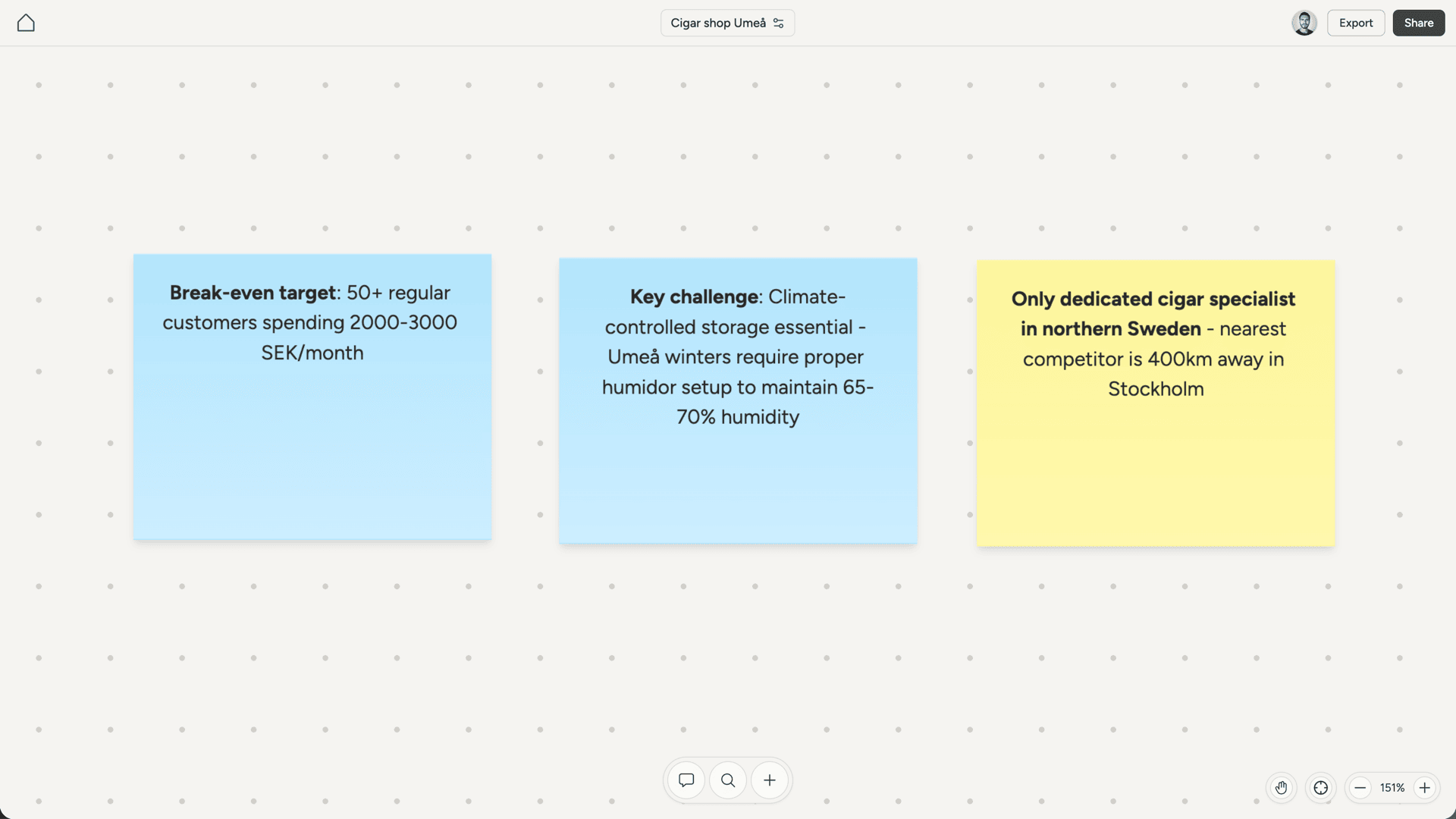 Your AI cofounder creates notes when something is worth capturing but doesn't warrant a document. You can also create notes yourself using the + button at the bottom of the canvas.
## Notes vs documents
Use notes for brief, self-contained information. A key insight from a conversation, a reminder about something to revisit, a quick reference you want visible on the canvas.
Use [documents](/documents) when you need structure, length, or rich formatting. Product specs, research findings, competitor analysis, feature descriptions. Documents support headings, lists, task lists, code blocks, and more.
If you're unsure, lean toward documents. Notes are best when brevity is the point.
## Colors
Notes come in six colors: yellow, green, peach, pink, blue, and purple. Yellow is the default.
Click a note to select it, then use the color picker in the toolbar to change its color. Colors are purely visual, so use them however makes sense for your project. You might color-code by topic, by status, or just by preference.
## Formatting
Notes support basic text formatting:
* **Bold** for emphasis
* *Italic* for softer emphasis
* ~~Strikethrough~~ for crossing things out
Text in notes is centered. For more formatting options like headings, lists, or code blocks, use a document instead.
Your AI cofounder creates notes when something is worth capturing but doesn't warrant a document. You can also create notes yourself using the + button at the bottom of the canvas.
## Notes vs documents
Use notes for brief, self-contained information. A key insight from a conversation, a reminder about something to revisit, a quick reference you want visible on the canvas.
Use [documents](/documents) when you need structure, length, or rich formatting. Product specs, research findings, competitor analysis, feature descriptions. Documents support headings, lists, task lists, code blocks, and more.
If you're unsure, lean toward documents. Notes are best when brevity is the point.
## Colors
Notes come in six colors: yellow, green, peach, pink, blue, and purple. Yellow is the default.
Click a note to select it, then use the color picker in the toolbar to change its color. Colors are purely visual, so use them however makes sense for your project. You might color-code by topic, by status, or just by preference.
## Formatting
Notes support basic text formatting:
* **Bold** for emphasis
* *Italic* for softer emphasis
* ~~Strikethrough~~ for crossing things out
Text in notes is centered. For more formatting options like headings, lists, or code blocks, use a document instead.
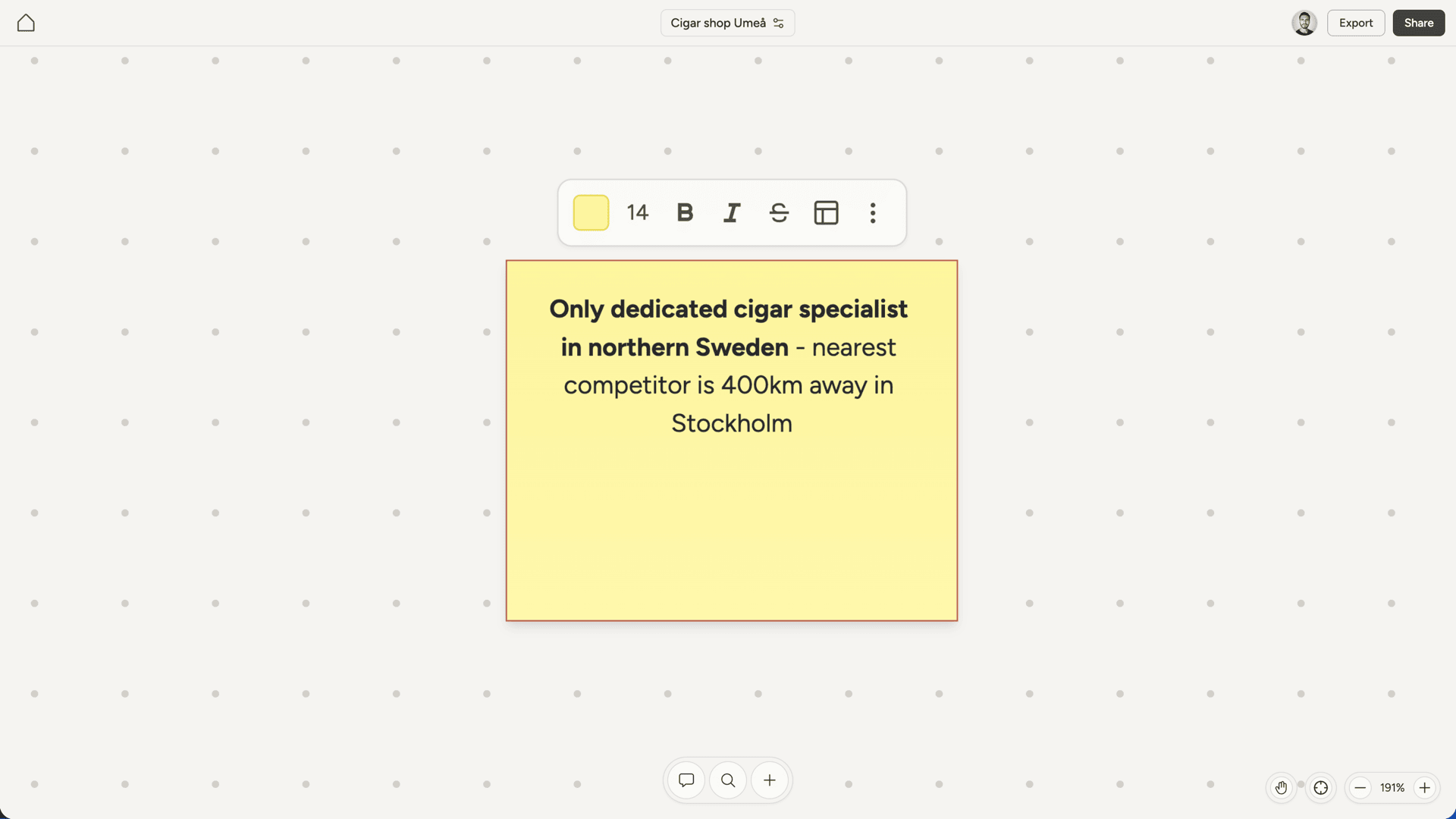 You can also adjust the text size. Click a note to select it, then use the size picker in the toolbar to choose from a range of sizes. Larger sizes work well for notes that serve as headers or labels on the canvas.
## Editing and resizing
Click a note once to select it, which reveals the toolbar. Click again to start editing the text.
Drag the left or right edge of a note to adjust its width. Notes have a minimum height, but they expand automatically as you add content.
Changes save automatically as you type.
## Downloading
Export any note in the format you need: Word, PDF, Text, or Markdown. Access download options from the note's menu. See [export](/export) for more details.
You can also adjust the text size. Click a note to select it, then use the size picker in the toolbar to choose from a range of sizes. Larger sizes work well for notes that serve as headers or labels on the canvas.
## Editing and resizing
Click a note once to select it, which reveals the toolbar. Click again to start editing the text.
Drag the left or right edge of a note to adjust its width. Notes have a minimum height, but they expand automatically as you add content.
Changes save automatically as you type.
## Downloading
Export any note in the format you need: Word, PDF, Text, or Markdown. Access download options from the note's menu. See [export](/export) for more details.