What lives on the canvas
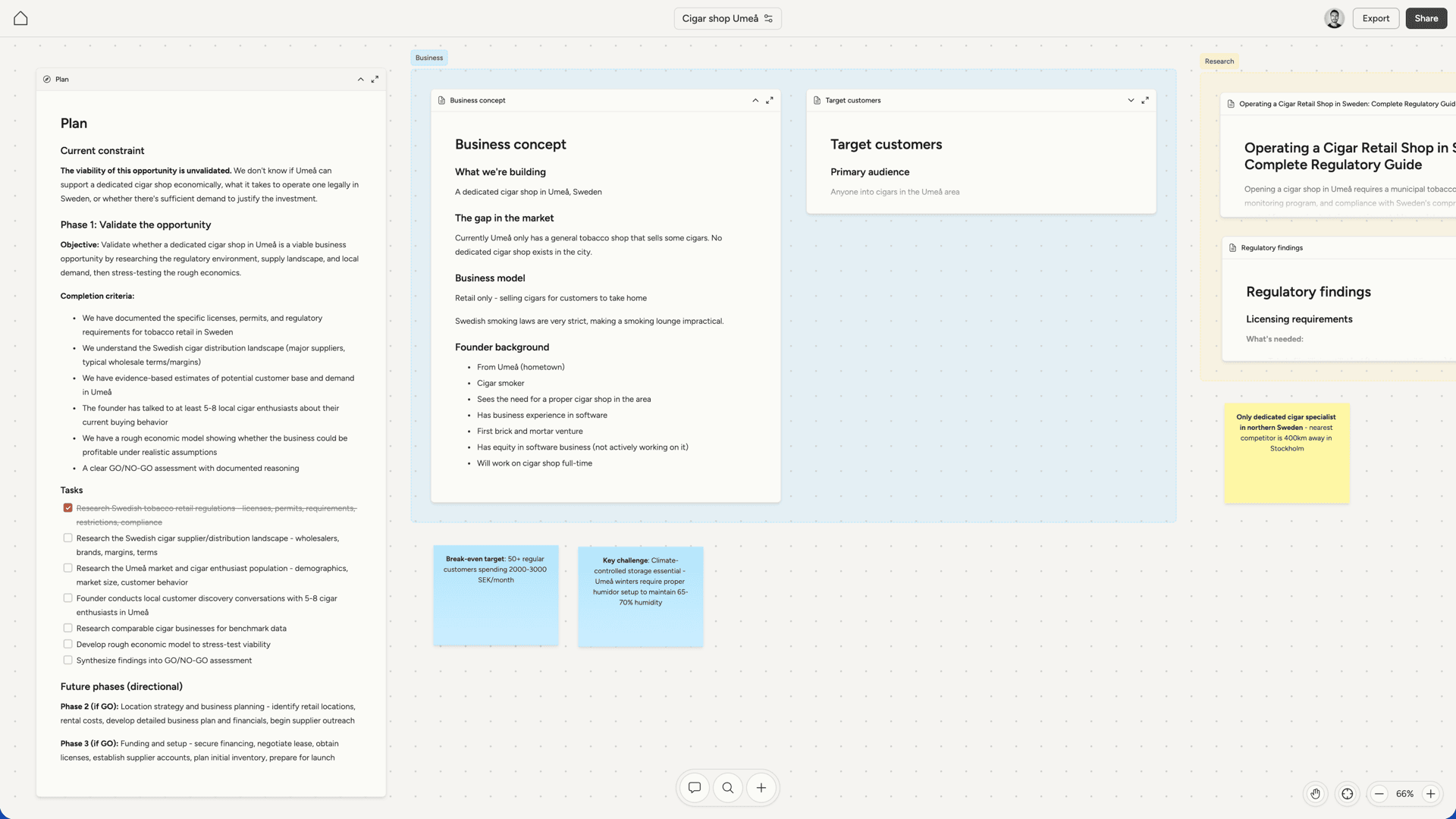
The canvas holds five types of items. Documents are the primary way information is captured and organized. They support rich markdown editing with headings, lists, task lists, tables, code blocks, and more. Documents have titles, can be collapsed or expanded, and can be opened in fullscreen for focused editing. The plan document created by ultraplan is a special document that serves as your project’s roadmap. Notes are colored cards for short, standalone pieces of information. They come in several colors and support basic formatting with adjustable text size. Notes are useful for quick reminders, temporary information, or anything that doesn’t need the structure of a full document. Websites appear as thumbnail cards on the canvas. Clicking one opens the fullscreen website builder with a live preview, code editor, and email capture view. See the websites page for details. Content calendar is a weekly calendar view for organizing marketing content across social media and email. You can navigate between weeks and click any post to open a fullscreen preview that shows how it will look on the target platform. See the content calendar page for details. Sections are colored areas for visually grouping related items together. They have names displayed as a tab above the section, come in several colors, and can be resized in all directions. When you drag a section, everything inside it moves together.Navigating the canvas
The canvas is infinite, so you navigate it by panning and zooming. Panning. Scroll with two fingers on a trackpad, or press and hold the Space bar to enter grab mode where you can click and drag to pan. There’s a center button in the bottom-right corner that returns you to the origin point. Zooming. Hold Cmd (or Ctrl on Windows) and scroll to zoom in and out. On touch devices, pinch to zoom. The zoom range goes from 20% to 200%. Zoom controls in the bottom-right corner let you zoom in, zoom out, and reset to 100%.Creating items
Use the + button at the bottom of the screen to create a new document, note, or website. The new item appears at the center of your current view. Your AI cofounder also creates items as you work together. When it adds something to the canvas, the item animates in so you can see where it appeared. If the AI edits an item that’s off screen, an indicator appears at the edge of the canvas pointing toward it.Working with items
Items use a two-step interaction model. Click an item once to select it, which shows a toolbar above the item. Click again to start editing the content. Documents show a formatting toolbar with text style options, lists, code blocks, and other markdown formatting. The menu lets you copy, duplicate, delete, or download the document (as Word, PDF, Text, or Markdown). You can also collapse a document to show just a preview, or open it in fullscreen for focused editing. Notes show a color picker and text size selector, along with basic formatting buttons. The menu includes copy, duplicate, delete, and download options. Websites have a fullscreen button to open the website builder, and a menu with delete and download options (website as .zip, or captured emails as .csv).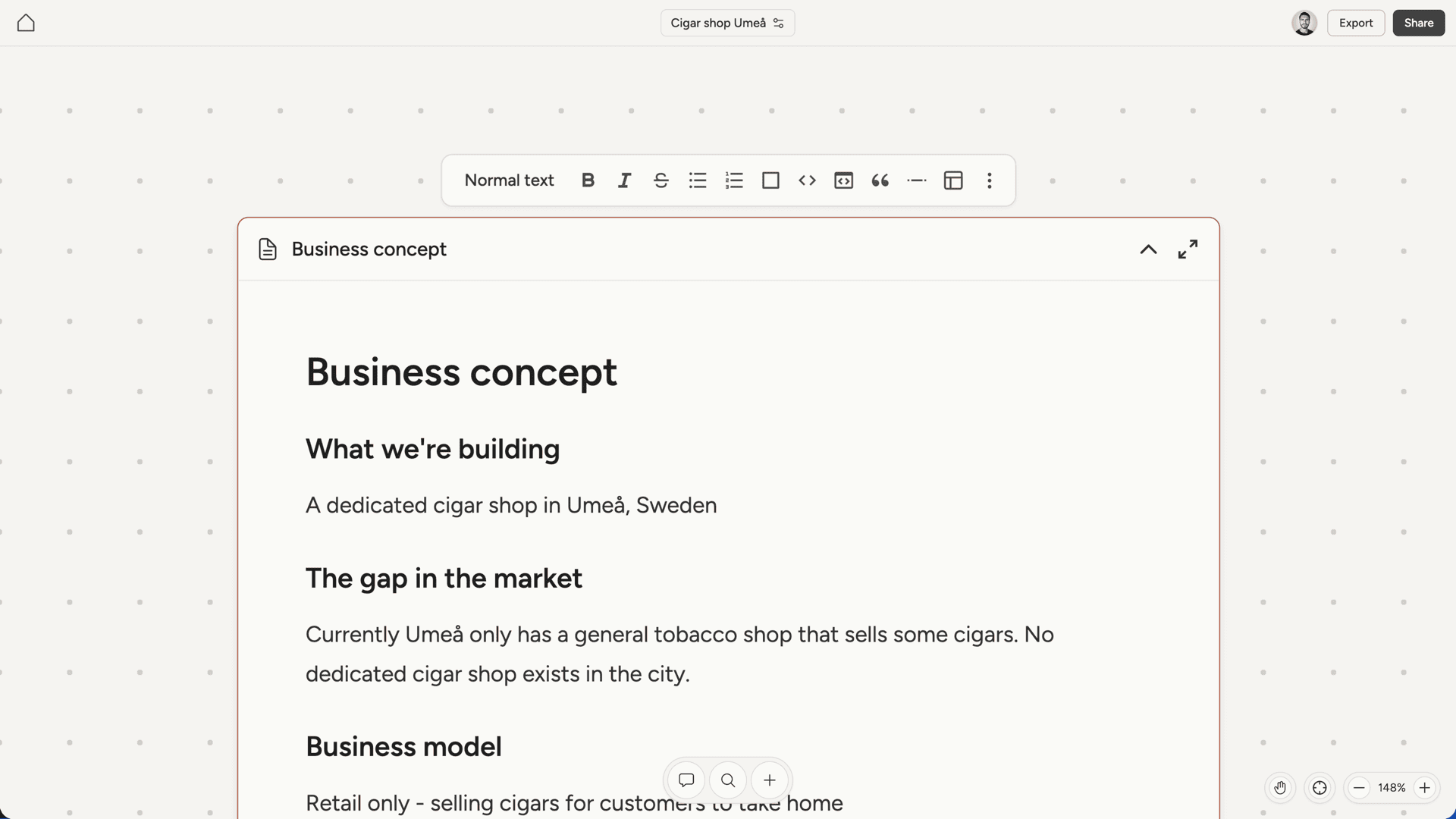
Fullscreen views
Documents and websites can be opened in fullscreen for focused work. Fullscreen documents show the full formatting toolbar and a clean editor. Changes autosave as you type.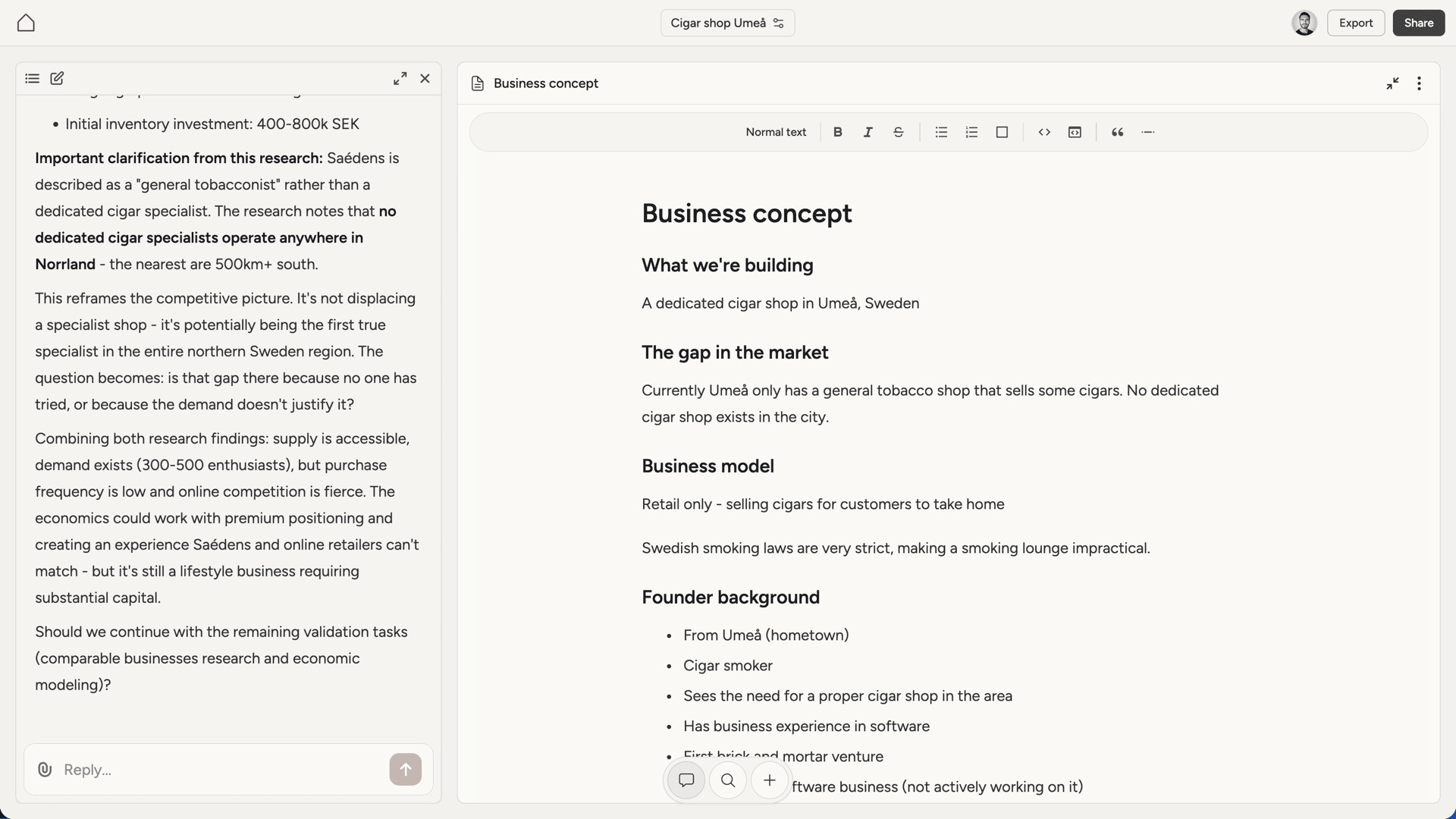
Multi-select
Click and drag on an empty area of the canvas to draw a selection box. All items within the box get selected and show a shared border. You can then drag them as a group, create a section around them, or delete them all at once using the selection toolbar.How the AI uses the canvas
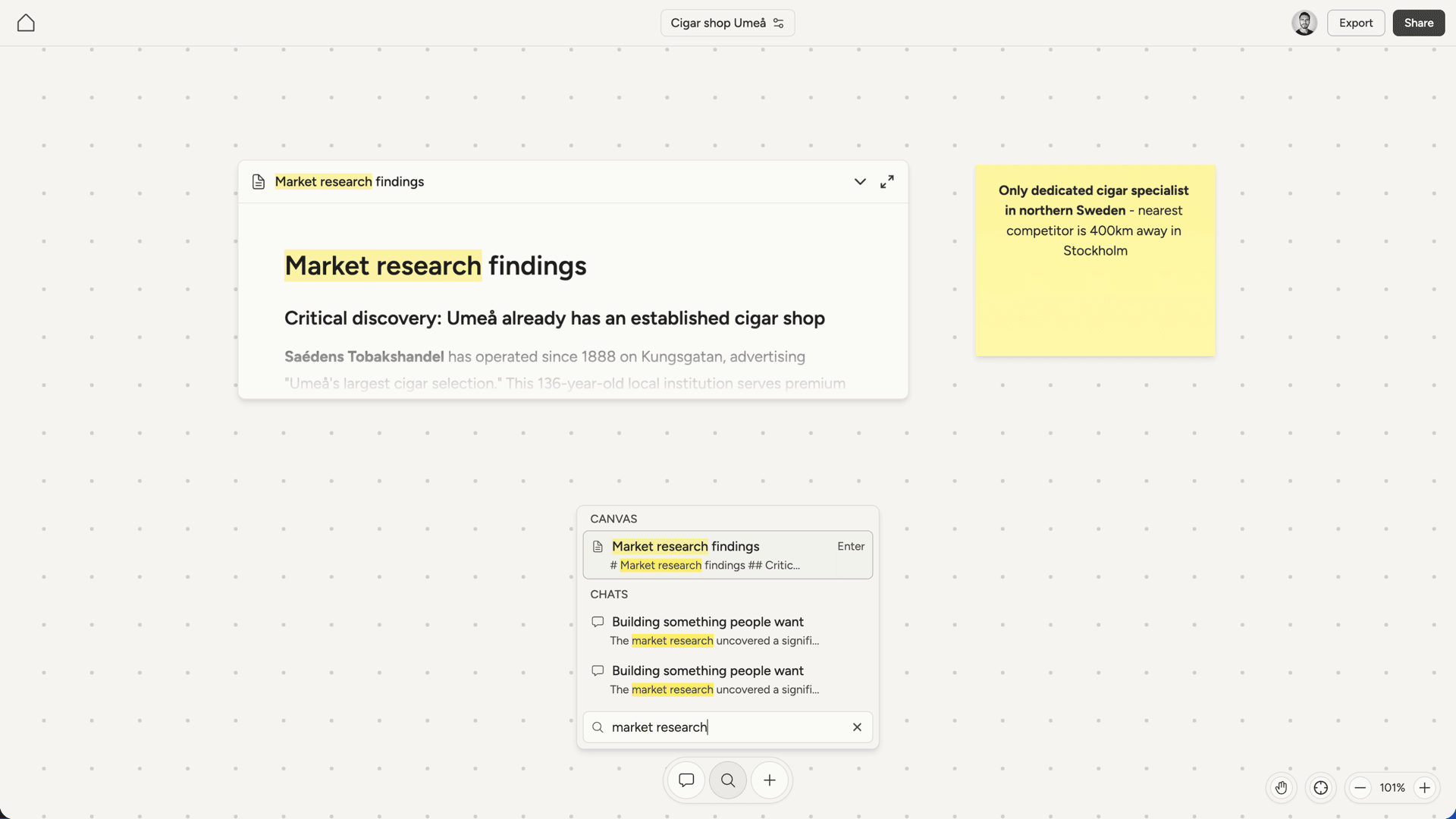
Your AI cofounder writes to the canvas as you work together. If you’re discussing pricing strategy and land on an approach, it creates or updates the relevant document. The canvas serves as the project’s brain: other agents read from it to understand where things stand. Documents get revised over time. As your understanding of the market shifts or early assumptions get invalidated, your AI cofounder updates what’s on the canvas to match.Search