
Inviting people
To invite someone to your project, open the Share menu from the topbar. You’ll see two access options: Restricted keeps the project private to existing members only. No one new can join. Anyone with the link generates an invite link you can share. Click Copy link and send it to whoever you want to invite. When someone opens the invite link, they’ll be added to the project automatically. If they don’t have an account yet, they’ll be prompted to sign up first and then joined to the project.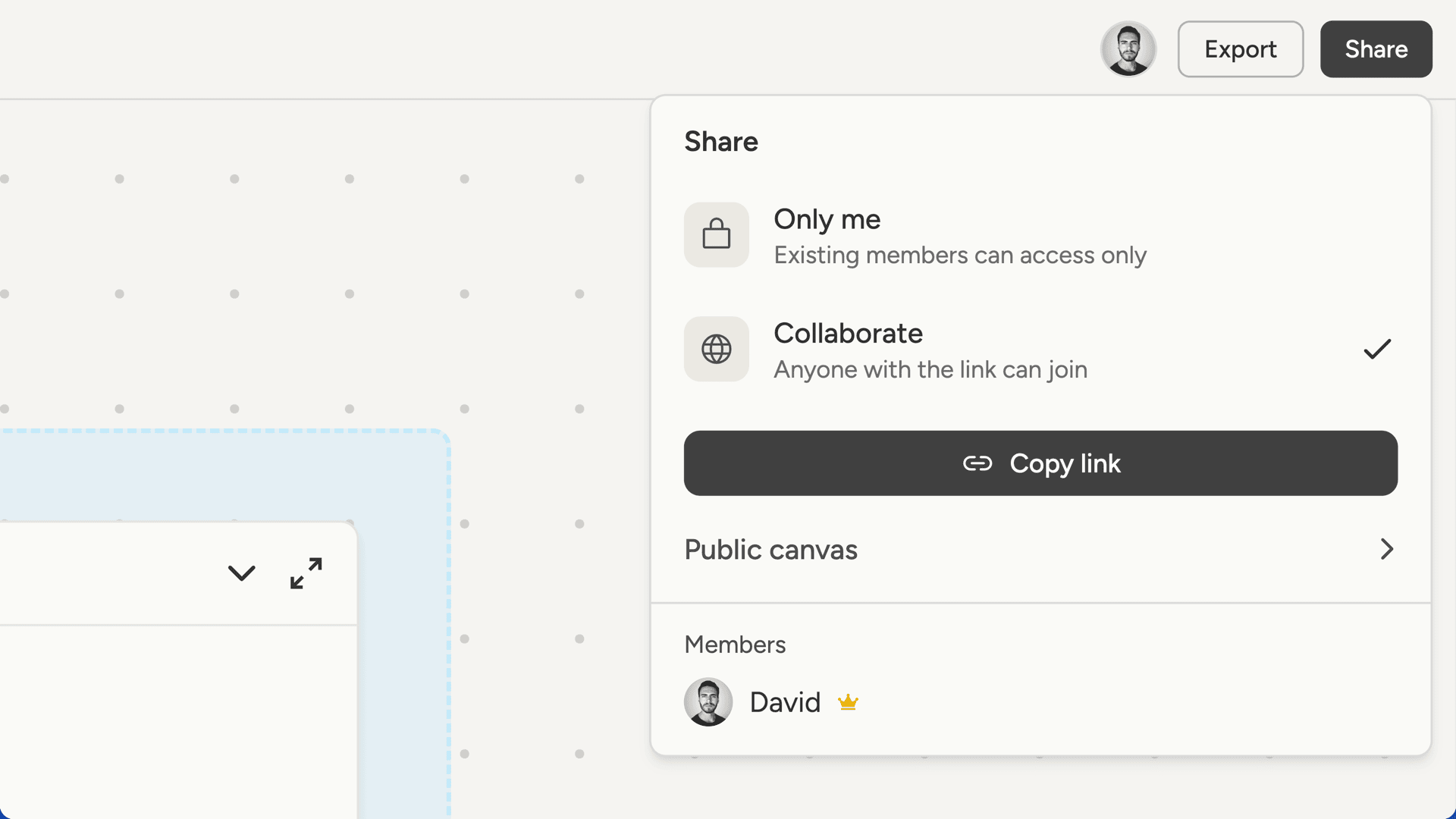
Working together
Collaboration happens in real-time. When one person adds a document, edits a note, or sends a message, everyone else sees it immediately. The topbar shows who’s currently viewing the project. Each person appears as an avatar, and hovering over one shows their name and email.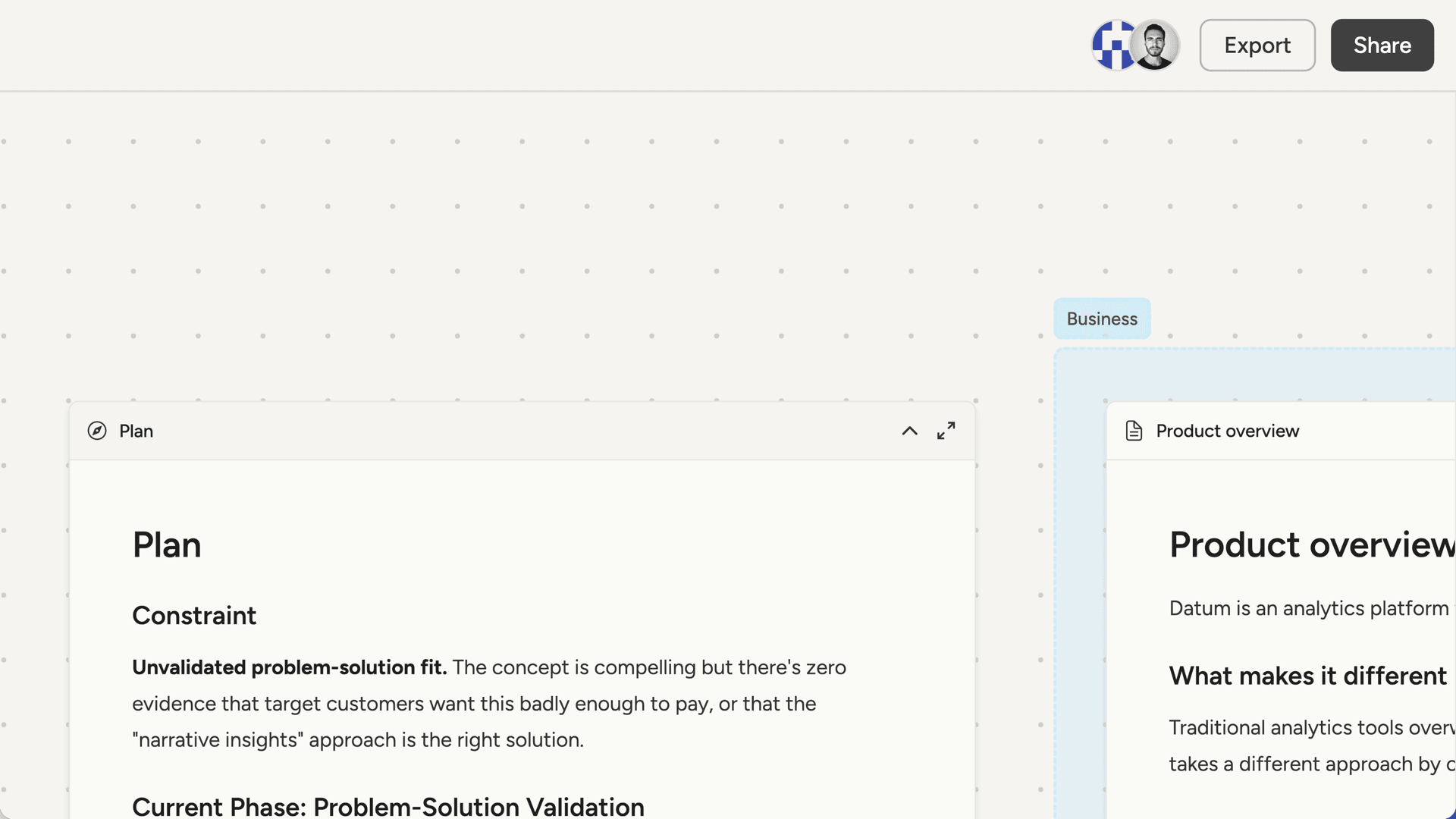
Managing access
The Share menu shows all current members of the project. If you’re the owner:- You can remove any member by clicking Remove next to their name
- You control whether the invite link is enabled or disabled
- You can leave the project at any time by clicking Leave project
- You have full access to the canvas and chat while you’re a member