Creating sections
There are two ways to create a section: From multi-select. Click and drag on an empty area of the canvas to draw a selection box around multiple items. The selection toolbar appears with a button to create a section around them. From an item toolbar. Select any document or note, and you’ll see a section button in its toolbar. This creates a section sized to fit that item.Naming sections
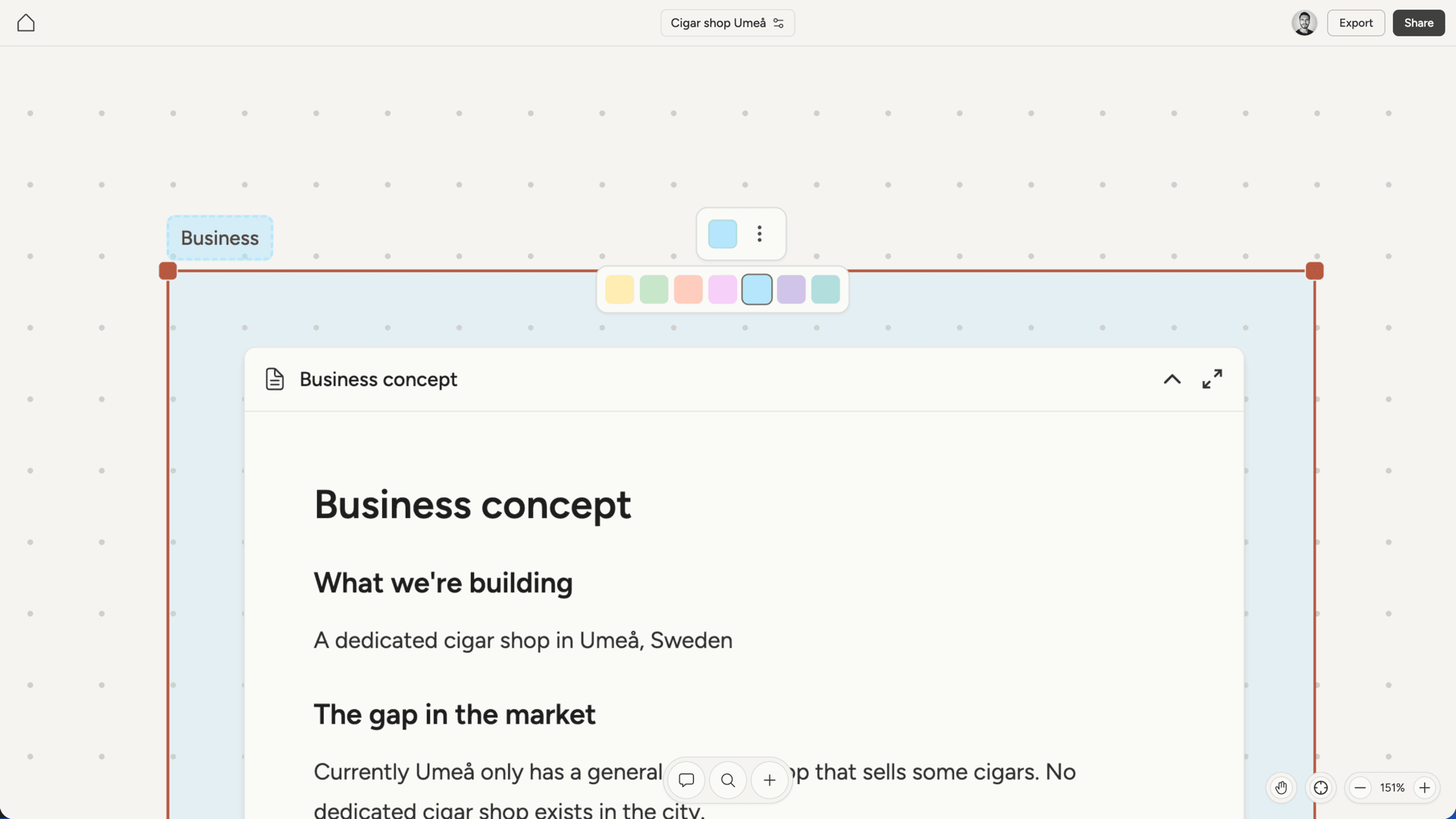
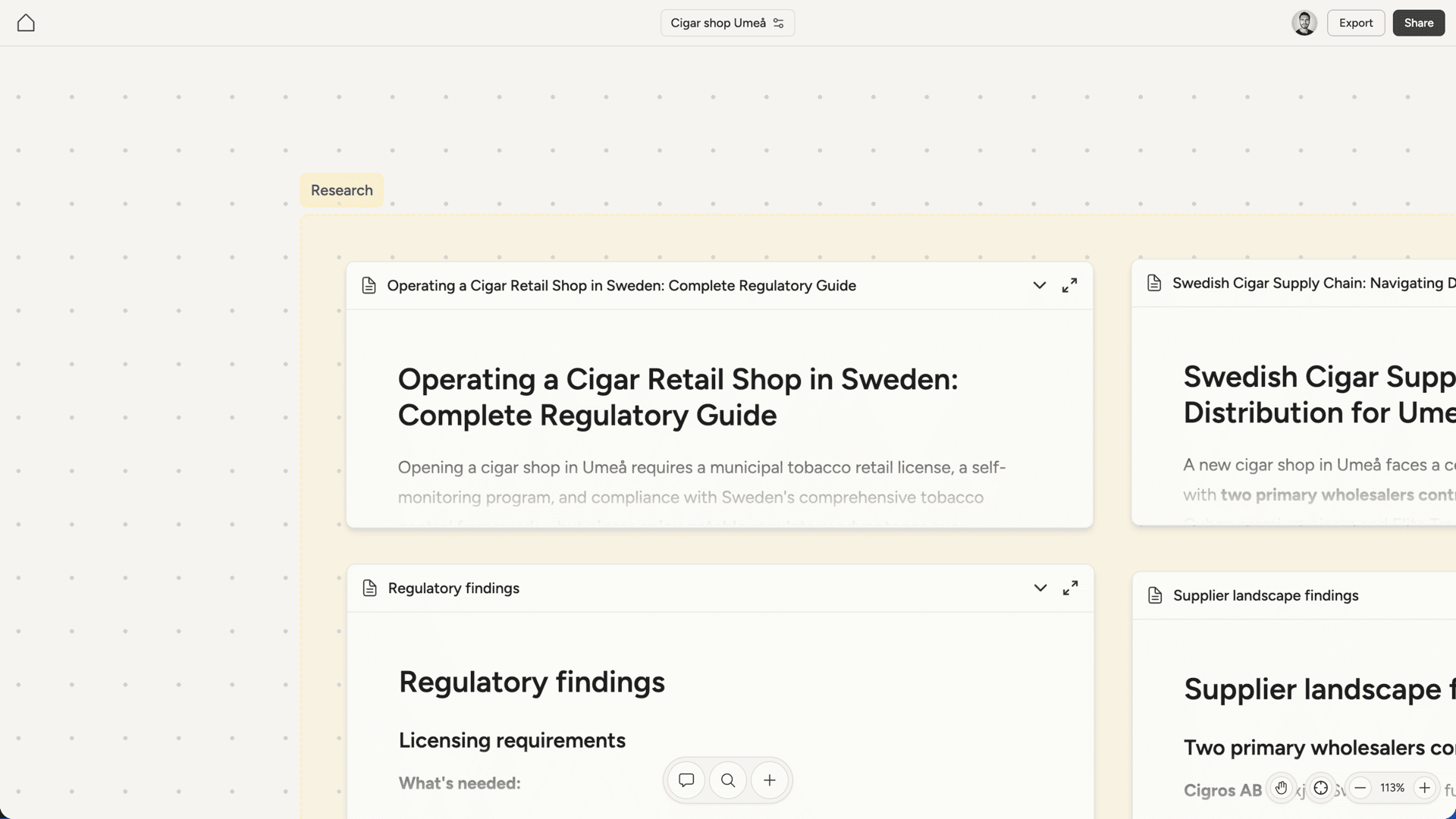
Each section has a name displayed as a tab above it. Click the name to edit it. Use names that help you remember what the group is for, like “Research”, “Branding”, or “Phase 1”.Colors
Sections come in seven colors: yellow, green, peach, pink, blue, purple, and teal. Click a section to select it, then use the color picker in the toolbar to change its color.